In this article
You'll learn how to:
- set up a Pitch Log Channel to organize sent playlists
- use playlist tags to add reporting context
- use Client Version to separate sent playlists from internal work
- build useful reports from those habits
- avoid common pitch-tracking mistakes
Start with a Pitch Log Channel
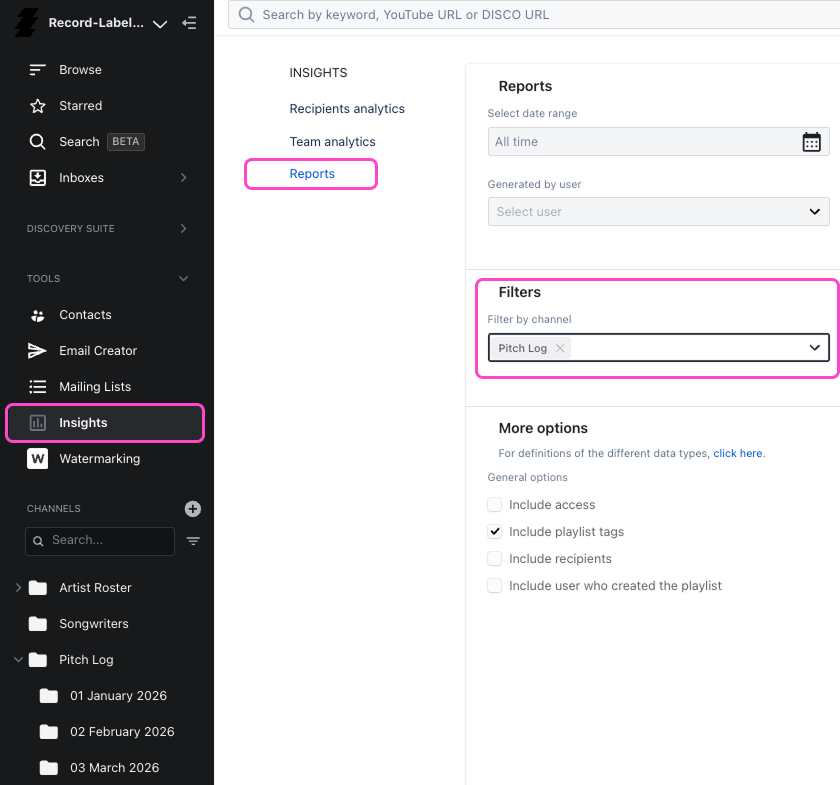
One of the simplest and most effective habits is to create a dedicated Channel for sent playlists. A Channel called Pitch Log gives your team one clear place to store outgoing work. Inside it, add folders for each month, each company, or another structure that makes sense for how you pitch.

For many teams, monthly folders are the easiest starting point because they keep activity moving in a clear timeline. Others prefer to break things out by client group or project type. The exact structure matters less than the consistency.
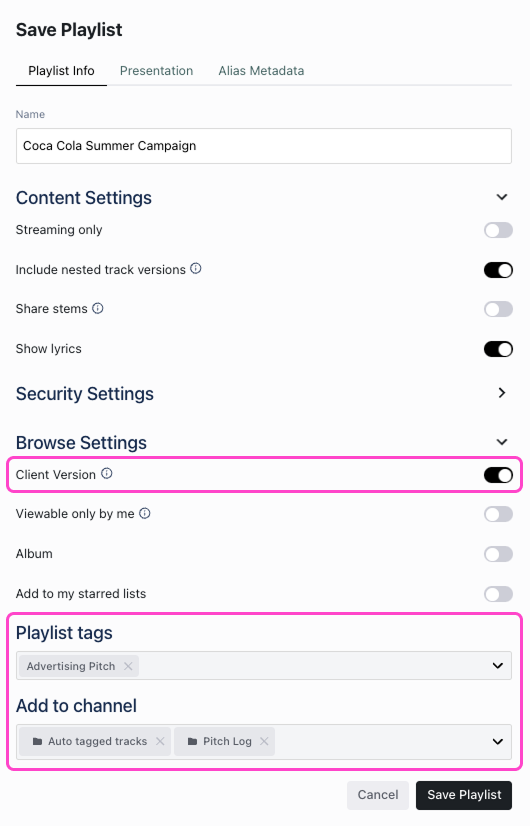
The important thing is that sent playlists live somewhere intentional and are tagged or marked as Client Version (in the Save Playlist settings) - rather than simply mixing with all the other playlists in Browse. A Pitch Log Channel also makes it easier to filter reports later.
Save sent playlists in a consistent way
The best reporting systems usually start before you ever open the Reports area. When you save or file a pitched playlist, try to do it consistently - adding it to the Pitch Log Channel, placing it in the correct month folder, applying the right playlist tags, and marking it as a Client Version if it was actually sent externally.
A simple repeatable workflow is usually better than an elaborate one. For example, every outgoing client playlist might follow this pattern: save the playlist clearly, add relevant playlist tags, add it to the Pitch Log, and turn on the Client Version toggle if it was sent externally.

Use playlist tags to add reporting context
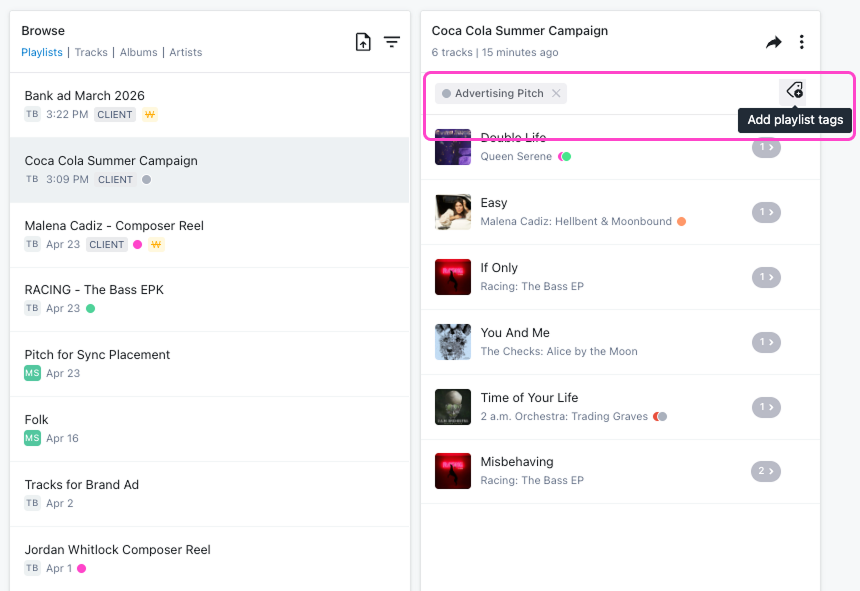
Playlist tags are one of the most useful tools for pitch tracking because they let you describe the context around a playlist without changing where it lives. Useful tags for pitch tracking include company or client name, project name, media type, territory, internal campaign name, and department or team.

If your team is pitching to a specific client, tag all relevant playlists with that client's name. If the work relates to advertising, also apply an Advertising tag. Later, those tags make it much easier to see every playlist connected to that client or media type - even if the playlists live in different folders or were created at different times.
Use media-type tags to track different kinds of work
Many teams pitch across several kinds of opportunities. If you consistently tag playlists as Film, TV, Advertising, Radio, or another relevant media type, your reports become much more meaningful. Rather than just seeing a long list of playlists, you can filter outbound work by the kind of opportunity it supported - making it easier to answer questions like how many film pitches went out this quarter, or how much TV-related pitching a specific artist received.
Use the Client Version toggle to separate sent playlists from internal work
Not every playlist created in DISCO is actually sent out. Some are internal shortlists, some are research playlists, and some are final client-facing deliveries. That is why the Client Version toggle matters so much for reporting.
When you save a playlist, you can turn on the Client Version toggle to flag it as externally sent. This adds a visible Client indicator to the playlist in Browse, making it easy to distinguish at a glance. If you consistently mark playlists that were actually sent externally using this toggle, you create a very useful filter. Reports filtered to Client Version only become much more accurate because they reflect true outbound activity rather than internal preparation.
Build a reporting workflow around a few key filters
When you open Reports in DISCO, start with a clear question - all playlists sent to one company, all client playlists from the last 30 days, all playlists sent for film, or all playlists containing a specific artist that were sent externally.
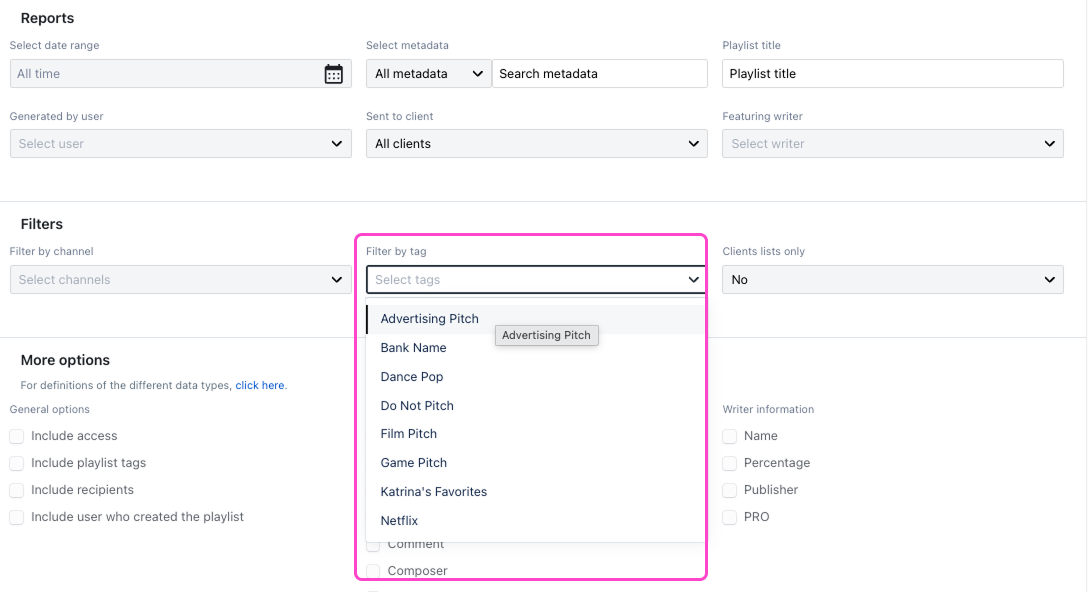
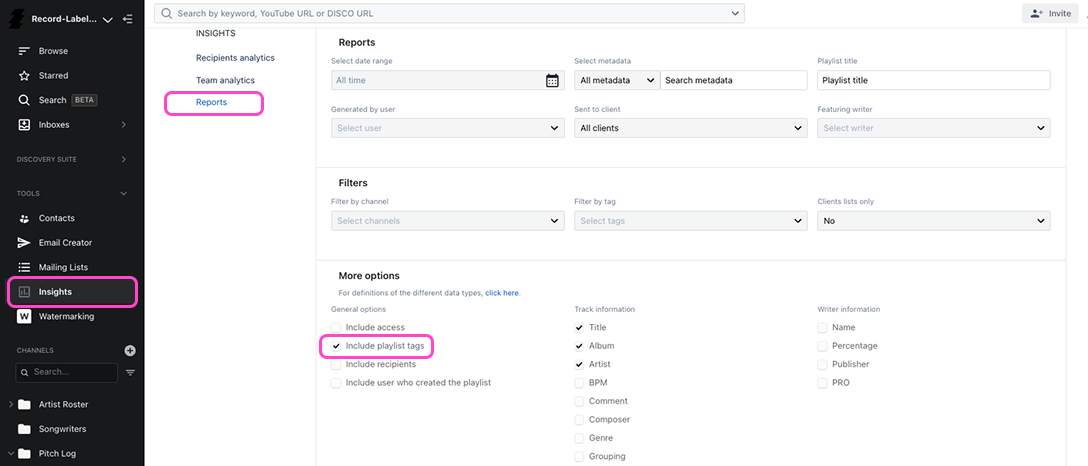
Some of the most useful reporting filters are time period, Channel, playlist tag, artist metadata, Clients lists only, and include tags in output.

Report on playlists sent to one client
Make sure playlists sent to that company are tagged with the company name and marked with the Client Version toggle, then open Reports, filter by that playlist tag, set Clients lists only to Yes, and include tags if you want more context in the exported report. This is especially useful when several different people at one company receive playlists over time.
Report on work by media type
Filter by your media type tag - Film, TV, Advertising - set Clients lists only to Yes, and include tags in the output. This makes it easier to answer broader strategic questions about where your team is spending its pitching time.

Report on a specific artist in pitched playlists
Use the relevant artist metadata filter, combine it with Clients lists only set to Yes, and include tags in the report so you can also see the media type, project, or client context. This is useful when updating artists, managers, or labels who want to understand what outbound activity is happening around their repertoire.
Include tags in reports whenever they add meaning
A report becomes much more useful when it includes context, not just file names. Playlist tags can show media type, company, or project - making an exported CSV much easier to interpret. Without tags, a report shows what playlists existed. With tags, it starts to show why those playlists existed.

Common mistakes to avoid
Relying on memory instead of building a real pitch log is the most common problem. Creating playlists for external pitching without marking them consistently - not filing them in the Pitch Log, not tagging them properly, or not turning on the Client Version toggle - makes reporting much weaker. Tagging too many edge cases and ending up with a structure so complex no one wants to maintain it is the other extreme to avoid.
A cleaner approach: one Pitch Log Channel, a simple folder structure, a manageable set of playlist tags, consistent use of Client Version, and reports built from those habits.
Wrap up
Pitch tracking works best when it is part of the workflow from the start, not something you try to reconstruct later. Use a Pitch Log Channel to keep sent playlists organized, playlist tags to add context such as client, project, and media type, the Client Version toggle to separate externally sent playlists from internal working lists, and Reports to filter and review that activity over time. When those pieces work together, DISCO becomes a clear record of what your team has pitched, where it went, and how to make sense of it later.