Search and navigate a DISCO Catalog

A DISCO Catalog is a searchable, browsable music library. This guide walks through everything you can do inside a Catalog - from searching and filtering tracks to saving your favorites, building playlists, downloading, and getting in touch about licensing.
alternatetext
Chat icon
Transcript
CONTENTS

In this article

You'll learn how to:

  • sign in and get access to a Catalog
  • search and filter tracks
  • explore playlists, albums, and artist profiles
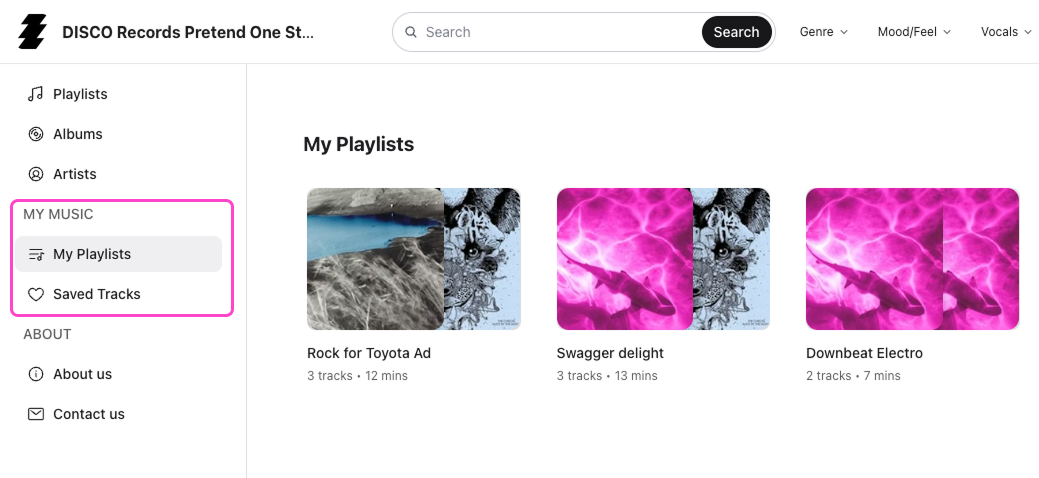
  • save tracks and build your own playlists
  • download tracks or save them to your DISCO
  • contact the Catalog owner about licensing

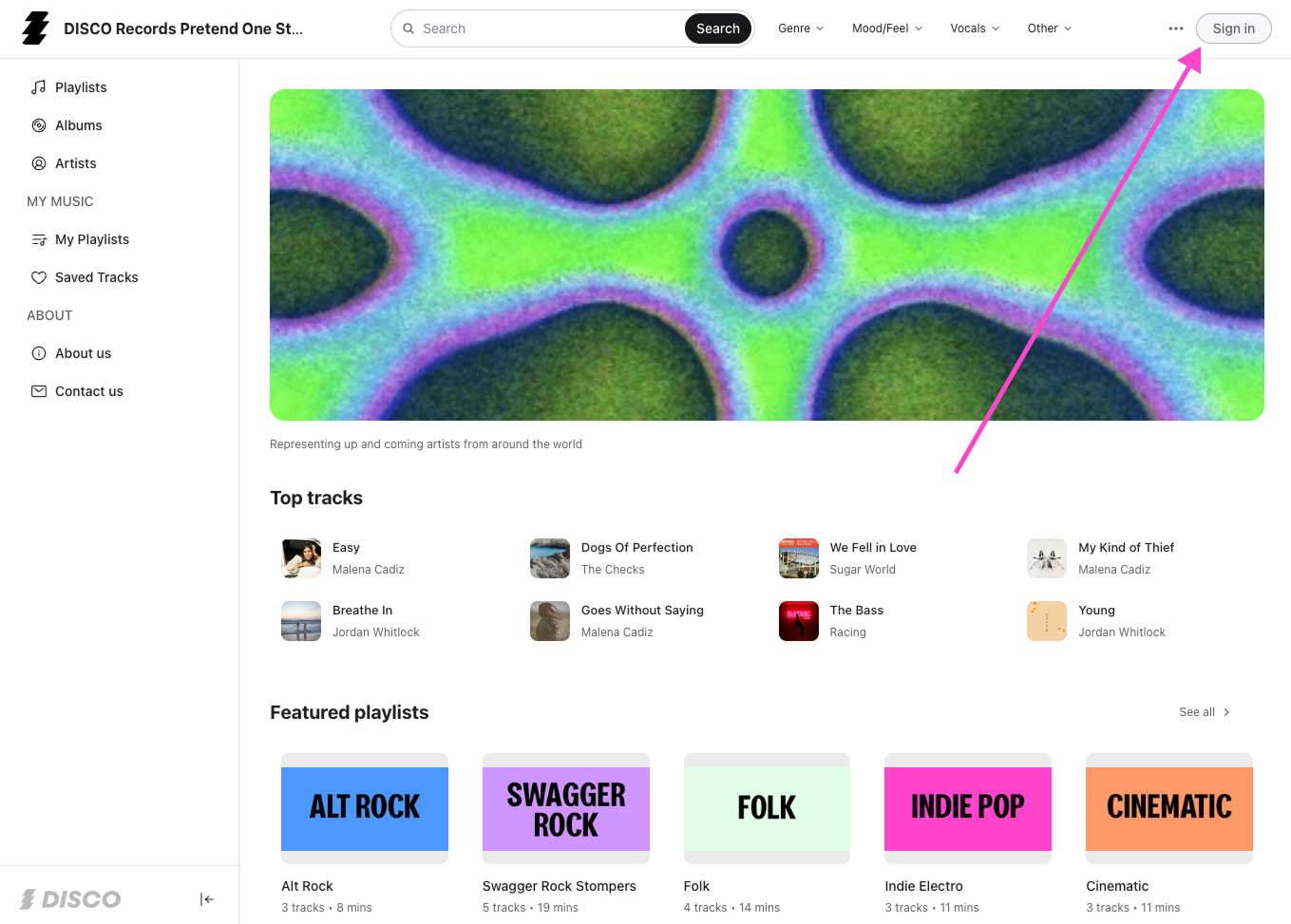
Sign in and get access

When you open a Catalog link, you may be asked to sign in. If the Catalog is set to public, you can browse and stream without logging in - but you will need a free account to download tracks, save them to DISCO, or create your own playlists inside the Catalog.

You do not need a full DISCO account to access a Catalog. You can create a free Catalog login with just your email address and a password. If you already have a DISCO account, use those credentials.

If you sign in and see a message that you do not have approved access, a request is automatically sent to the Catalog owner. They will approve or decline and you will be notified when your access is confirmed.

Search and filter tracks

The search bar scans everything - track tags, metadata, and lyrics - and returns results instantly. Type a genre, a mood, an instrument, a lyric phrase, or anything else that describes what you are looking for.

Tag filters let you narrow results further. Select a tag category, choose the tags that match what you need, and the results update immediately. You can combine multiple tags for a more precise search - selecting "Cinematic", "Orchestral", and "Tension" will return tracks that match all three.

When lyrics are present, they appear quoted in context below each track in the search results - so you can see exactly where a word or phrase appears in a song before you even play it.

Explore playlists, albums, and artists

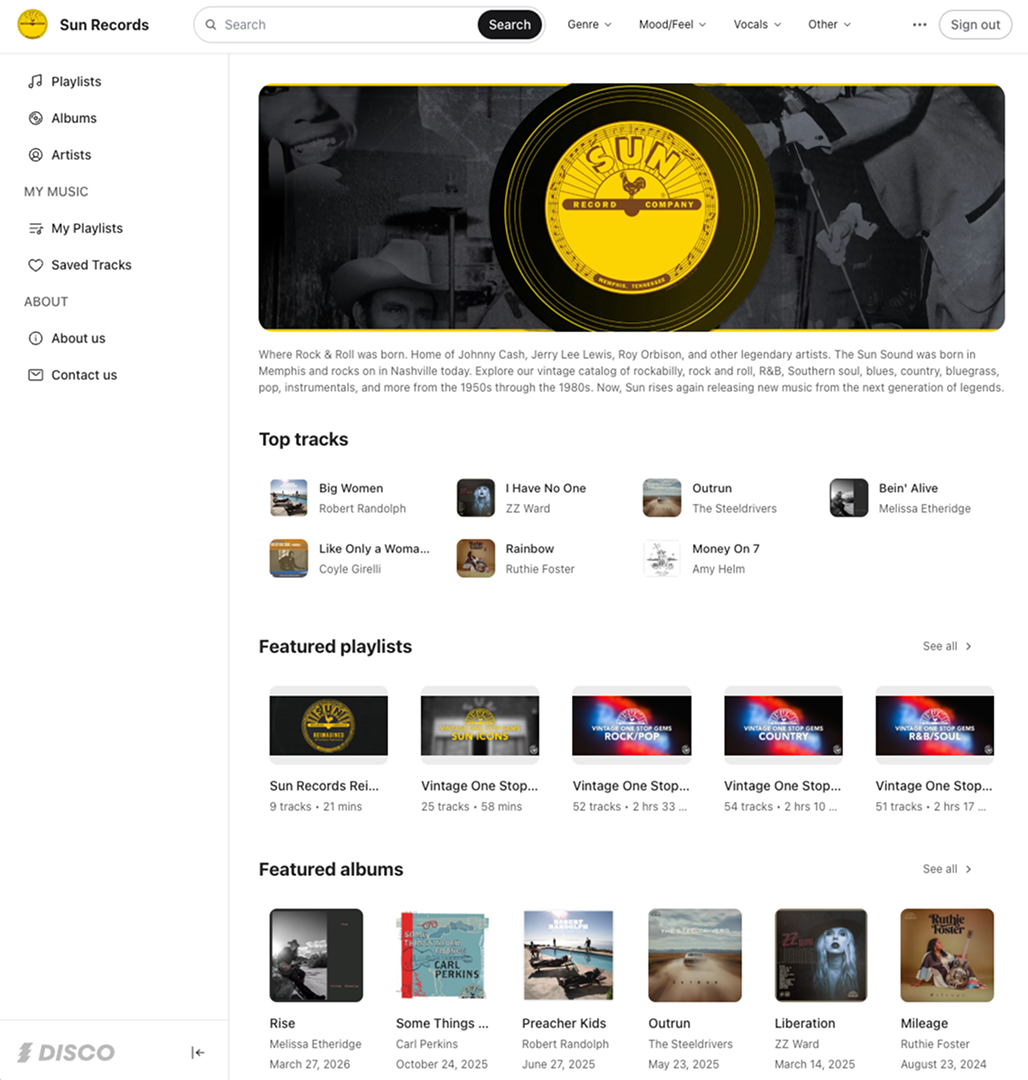
The homepage features curated playlists, albums, and artists selected by the Catalog owner. Click into any of them to explore the tracks inside.

Playlists group tracks by theme, mood, genre, or use case - a great way to discover music you might not have found through search alone. Albums link to connected Artist Profiles and show release dates. Artist Profiles include a photo, bio, and all associated tracks in the Catalog - click through to explore an artist's full catalog in one place.

Navigate back to the homepage at any time by clicking the Catalog name in the top left corner.

Interact with tracks

Hover over any track to access the available actions:

  • Stream audio and scrub through the waveform
  • Heart a track to save it for quick reference
  • Click + to add it to one of your own playlists inside the Catalog
  • Click the track title to open the full track view - tags, metadata, and lyrics all in one place

Your My Music zone in the sidebar is private - only you can see your playlists and saved tracks.

Download tracks or save them to DISCO

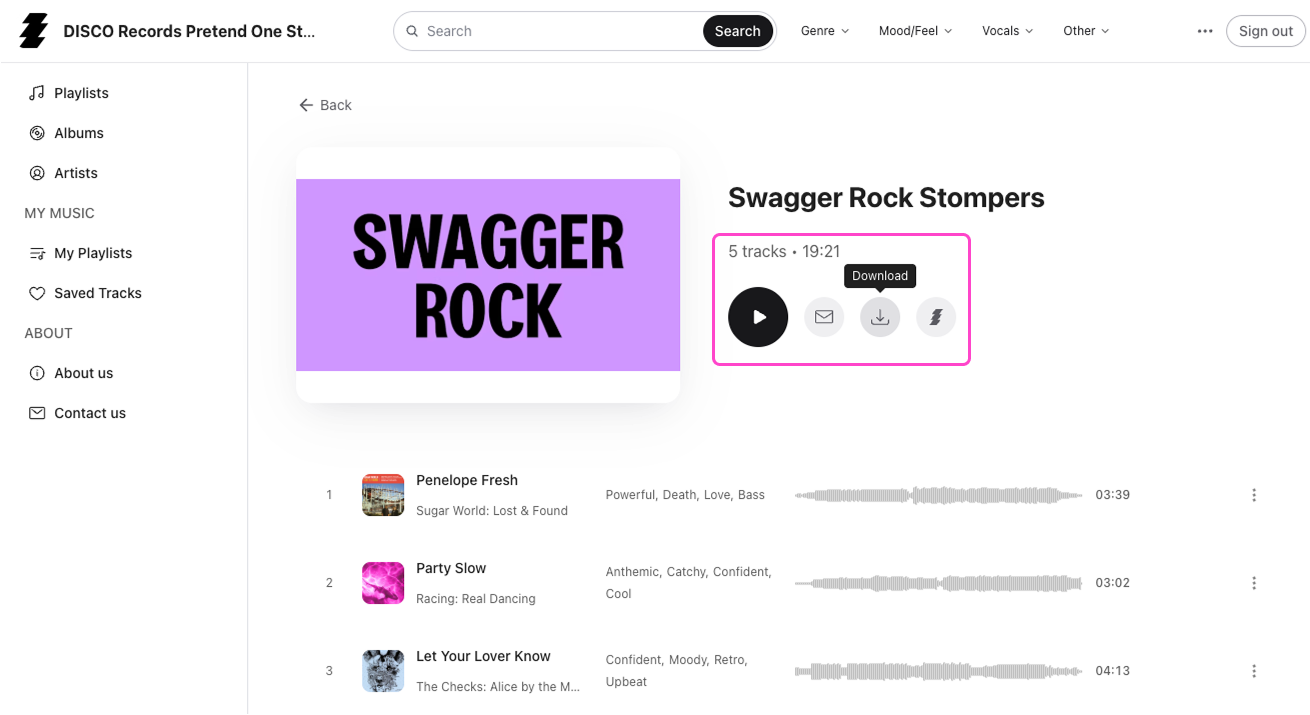
When you are ready to move tracks into your workflow, hover over the track to access the download or Save to DISCO options.

All available file formats are accessible from the track menu. The Catalog owner controls whether high-resolution files or MP3s only are available for download. If you have a DISCO account, you can save tracks directly to your DISCO Inbox without downloading anything to your computer first - the music moves between accounts seamlessly, ready to use immediately.

To save an entire playlist you have built in My Music to your DISCO, open My Playlists in the sidebar and click the Save to DISCO icon in the playlist menu.

Contact the Catalog owner about licensing

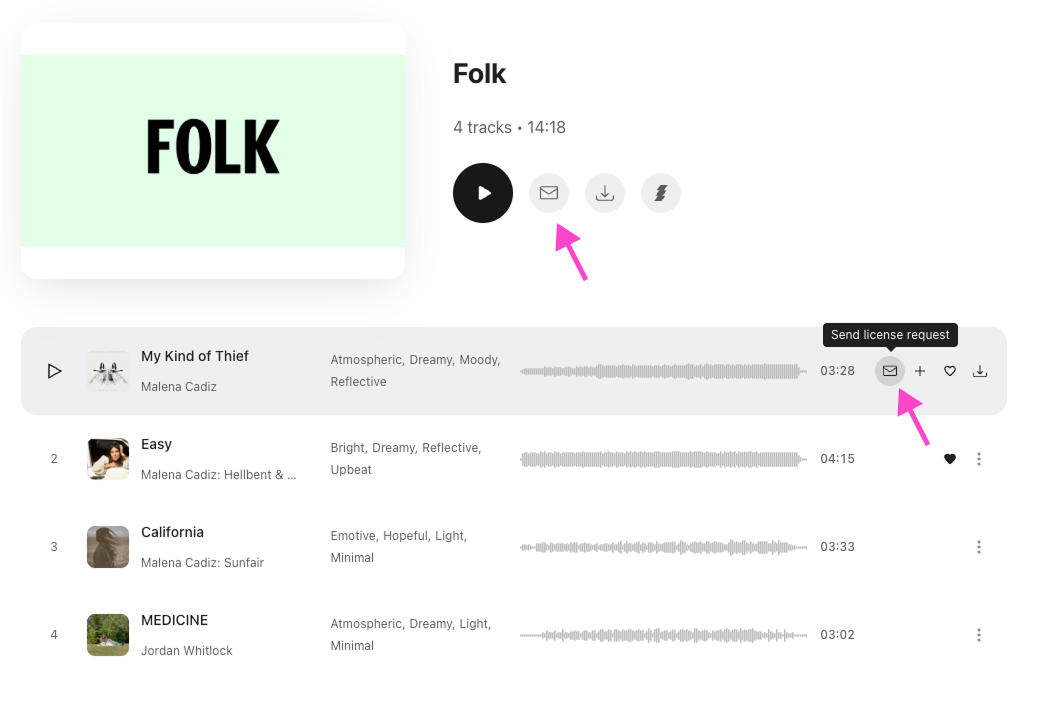
When you find music you want to license, you can either select Send license request on a track or playlist, or open the Contact us tab in the Catalog to get in touch with the owner directly. This is the right path for any licensing conversation - the Catalog itself does not handle licensing transactions.

Note which tracks you are interested in and include any relevant context about your project before reaching out. The faster and clearer your inquiry, the faster you are likely to get a response.

Wrap up

A DISCO Catalog gives you a powerful way to search, explore, and act on a music collection - without the back-and-forth of email attachments and file transfer links. Use the search bar and tag filters to find exactly what you need, build your own playlists as you go, and reach out to the Catalog owner when you find something worth licensing.

Questions answered

How do I get access to download files from a Catalog?

How do I search a DISCO Catalog?

Can I create my own playlists in a DISCO Catalog?

Can I use the same login to browse different DISCO Catalogs, provided I’ve been granted access to them?