


In this article
You'll learn how to:
- choose the right presentation style for your playlist
- customize a default playlist with messages and branding
- create Artist Pages and Album Pages
- add bio, social links, and video
- adjust presentation settings that shape the recipient's experience
- troubleshoot common setup issues
Start with a saved playlist
Before you can customize how a playlist looks, it needs to be saved. Once saved, open the Presentation tab to choose a layout and begin shaping how the files will be presented to recipients.
This is useful when you want to do more than simply send files. A polished presentation can help you pitch music, introduce an artist, deliver an album, or package media into one clear destination.
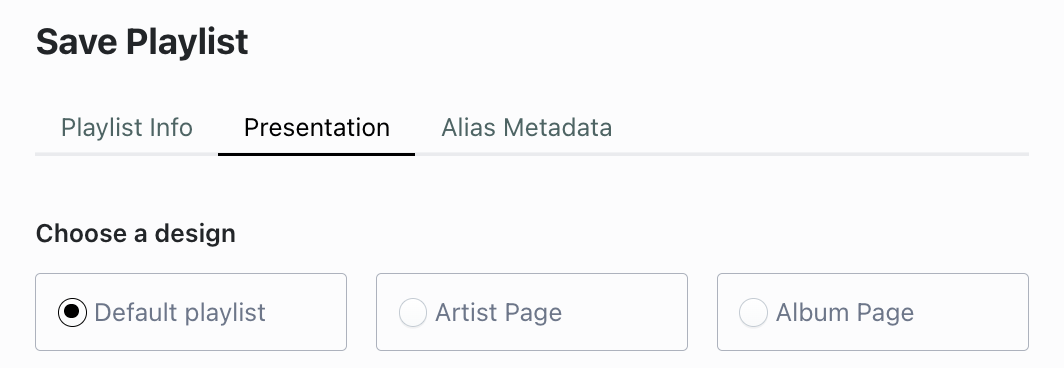
Choose the right presentation style
DISCO offers three main presentation styles - Default playlist, Artist Page, and Album Page. Each one is suited to a different kind of workflow.
Use the default playlist for simple, polished sharing
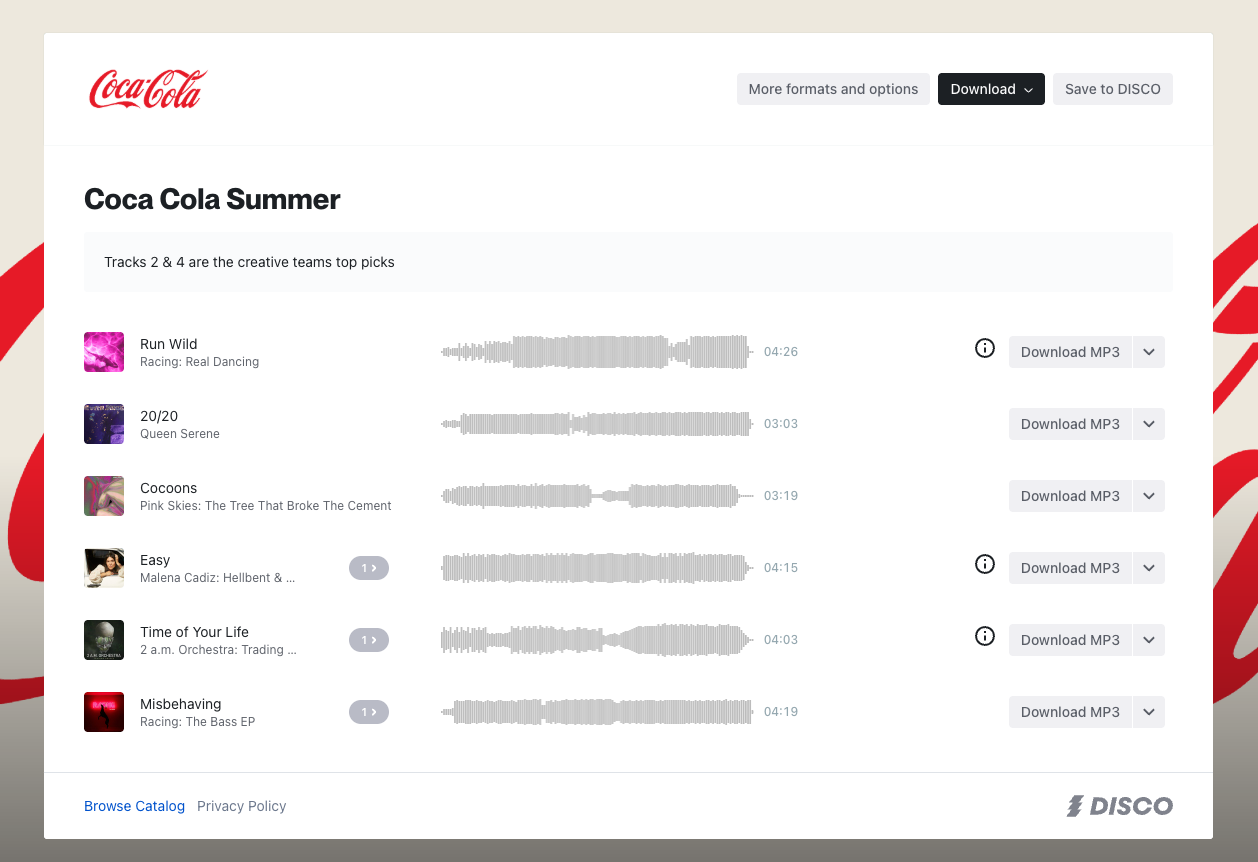
The default playlist keeps the focus on the tracklist and is best for general sharing, pitching, and curated file delivery. Use this when you want a clean presentation of files with the option to add extra context and branding.
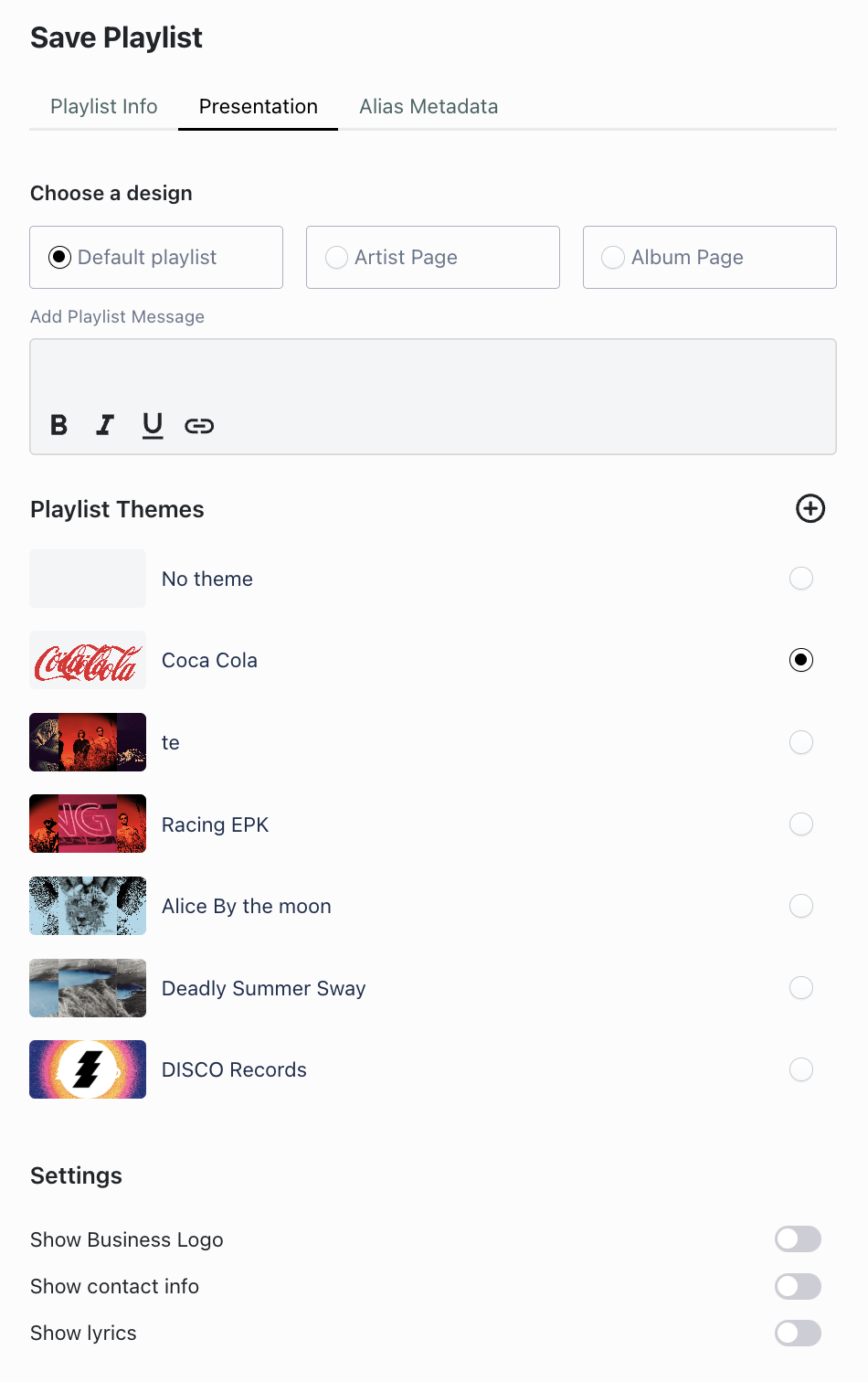
Add a playlist message
A playlist message is embedded directly into the playlist page and is separate from any email you send. This is a good place to add a listening note, a press release, background on the playlist, or instructions for the recipient. Messages support formatting and hyperlinks.
Add branding with themes
Themes let you customize the visual design of a default playlist with background images, logo images, and brand colors. This helps make the playlist feel more aligned with your artist, company, client, or project. You can reuse previous themes and set a default theme for future playlists.
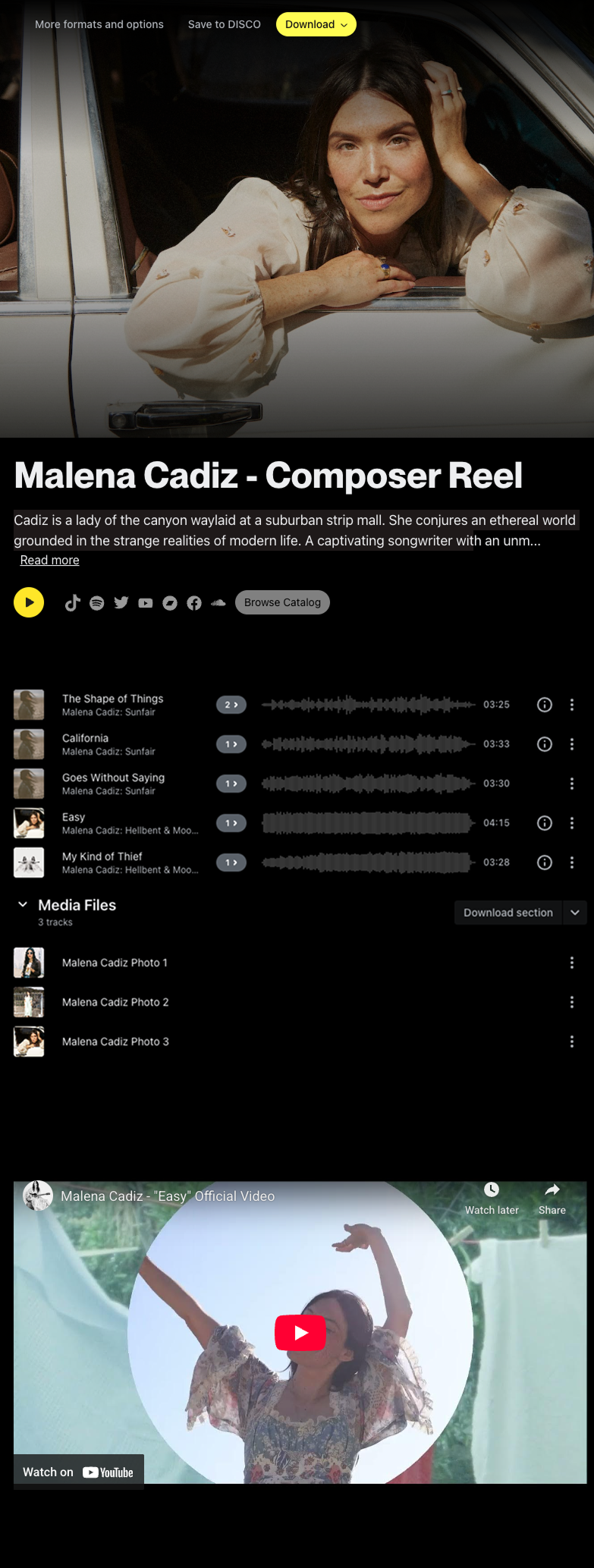
Use an Artist Page to present an artist or composer reel
The Artist Page is designed for presenting an artist in a richer, more public-facing way. Use this when you want to combine music with artist imagery, bio, social links, and video to create a fuller artist presentation.
An Artist Page can include a hero image, artist bio, social links, and embedded video from YouTube, Vimeo, or uploaded files in DISCO. It draws on an Artist Profile to populate these details automatically, keeping artist information consistent across DISCO.
For a step-by-step walkthrough of building an Artist Page, see the Create a DISCO Artist Page guide.
Use an Album Page to present a release
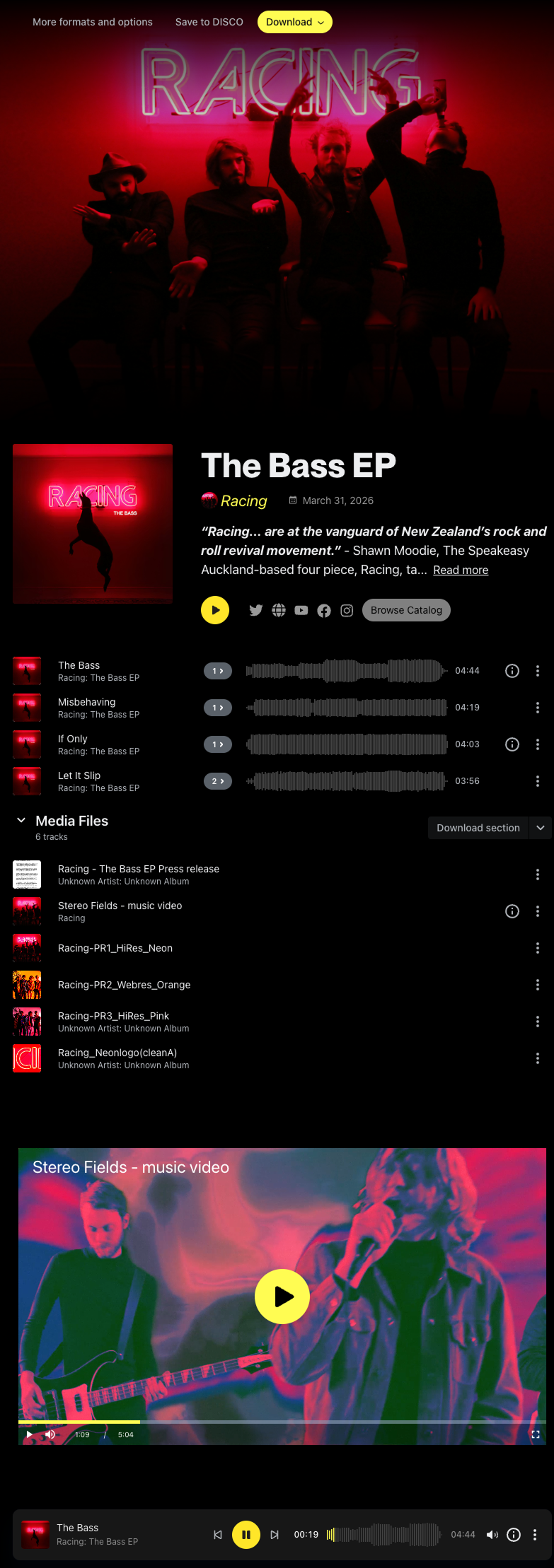
The Album Page is similar to the Artist Page but adds album-specific context such as album art, album title, and release date. Use this when you are presenting a release, album campaign, or EPK-style package.
An Album Page allows you to include album art, release date, hero image, release notes, album story or campaign information, social links, and embedded video. This helps turn the playlist into a stronger release-focused presentation rather than just a list of files.
Adjust the presentation settings
The Presentation tab also includes settings that shape how much information appears around the files. Depending on the playlist and template, you can choose to show lyrics, your business logo, your contact information, and save or download options. These settings help you decide how much information and functionality you want the recipient to have.
Troubleshoot common setup issues
A few common issues are worth keeping in mind.
If the Save button is unavailable on a page layout, check whether an Artist Profile needs to be linked first.
If a page is using pre-filled artist information, review the image, bio, and social links before sharing to make sure they are current.
If an embedded video appears blank on the public page, confirm that you copied the video URL from the browser address bar and not the platform's share link.
Wrap up
DISCO's presentation tools help you turn playlists into polished, professional destinations for listening, pitching, promotion, and review. Whether you use a default playlist, Artist Page, or Album Page, the Presentation tab gives you a flexible way to add context, branding, and media around your files so the whole package feels clearer and more compelling to the people you share it with.