


In this article
You'll learn how to:
- search across your tracks, playlists, metadata, tags, and lyrics
- narrow results using keywords and exclusions
- refine searches with filters
- sort and organize search results
- use Similarity Search to find related tracks
- use the Breadcrumb Trail to uncover related playlists and past searches
- collaborate more effectively with your team
Start with the search bar
The search bar is the fastest way to find content in DISCO.
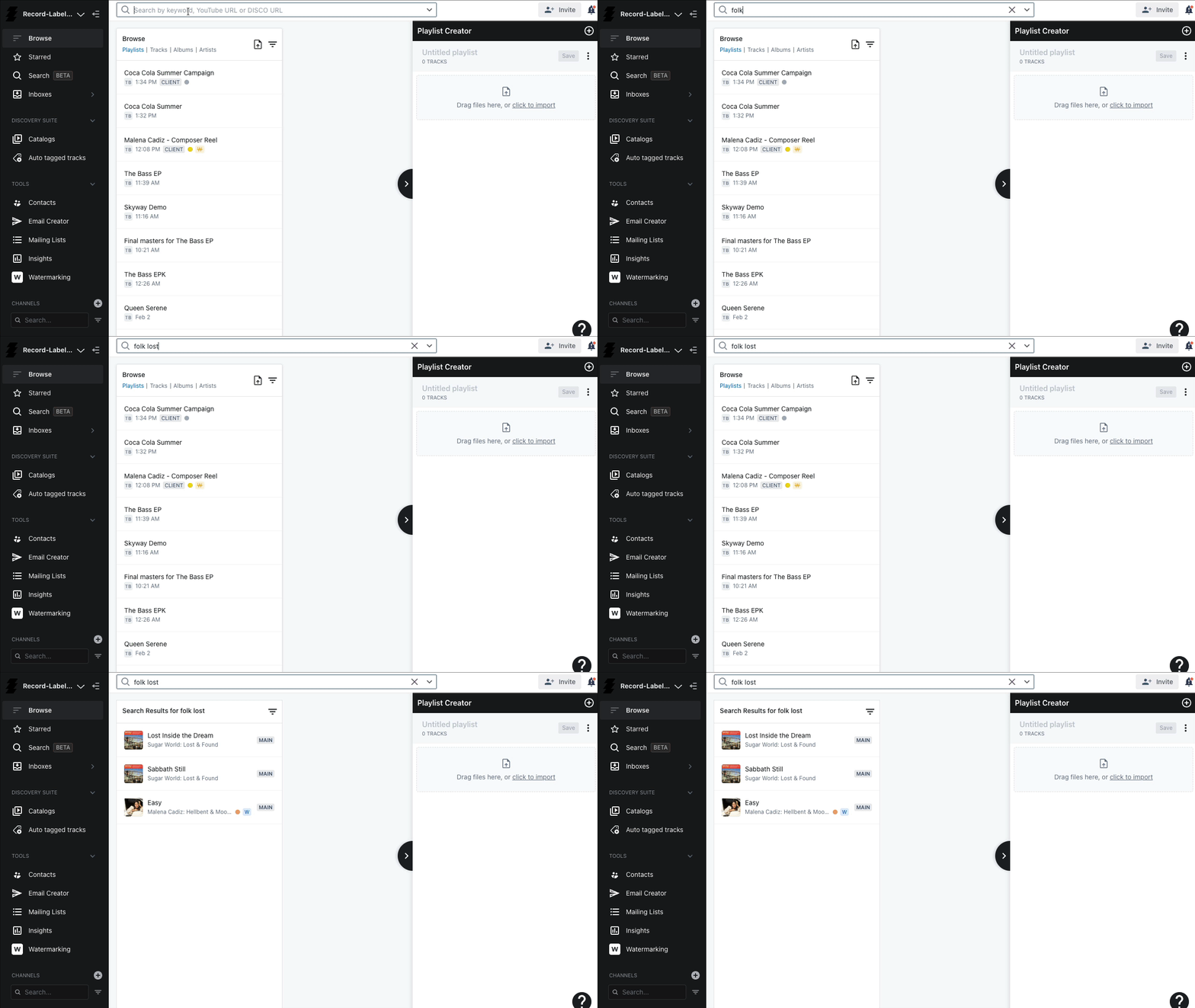
You can search for things like:
- track titles
- artist names
- album names
- playlist titles
- genres
- ISRCs
- lyrics
- track tags
- playlist tags
- other indexed metadata fields
Simply type your query into the search bar and DISCO will scan your content to return the most relevant results.
Combine search terms to narrow results
DISCO search uses “and” logic by default, not “or” logic.
That means if you search for:
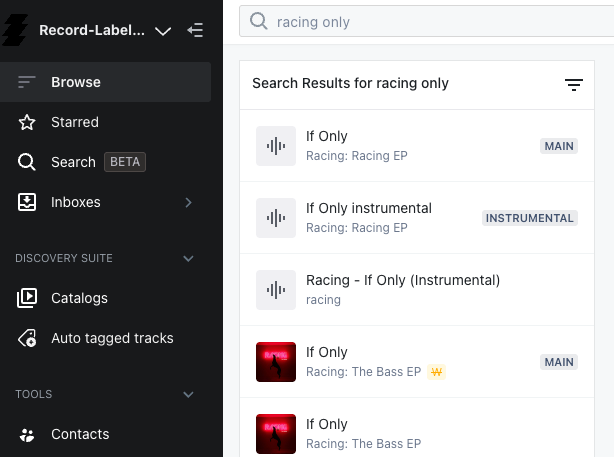
if only racing
DISCO will look for results that contain both “If Only” and “Racing.”
This is useful when you want to narrow in on a specific track, artist, or combination of characteristics.
Exclude unwanted results
You can use a minus sign (-) to remove unwanted terms from your results.
For example:
"racing -bass"
This would return tracks that match racing, while excluding results that contain bass in their metadata or tags.
This is a simple way to reduce irrelevant results without needing to open advanced filters.

Search, filter, and sort results
Open the Search area from the sidebar to refine how results are displayed. From here you can filter results for more precision, sort results in different ways, choose which fields appear in the grid, adjust column widths, and rearrange results by clicking column headers.
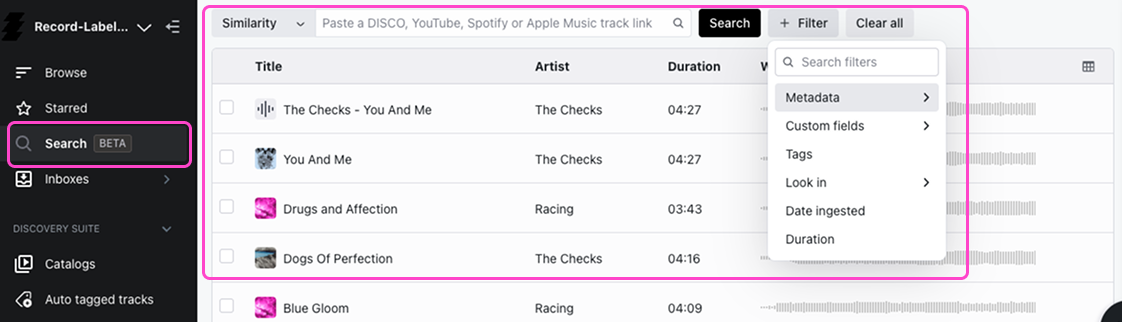
Start with a search, then filter it
Begin with a broad search in the search bar, then apply filters to narrow the results. For example, you might search for "rock", then filter by year, lyrics, or BPM. This is useful when you want to cast a wide net first, then narrow the pool.
Start with filters
You can also begin by setting filters without entering a search term first. This usually returns fewer, more targeted results because you are searching within specific fields from the start.
Filter by the fields that matter most
Use filters to narrow results by metadata fields, custom fields, track tags, playlist tags, Channels, and Inboxes. This helps you quickly focus on the most relevant part of your catalog.

Use Similarity Search to find related tracks
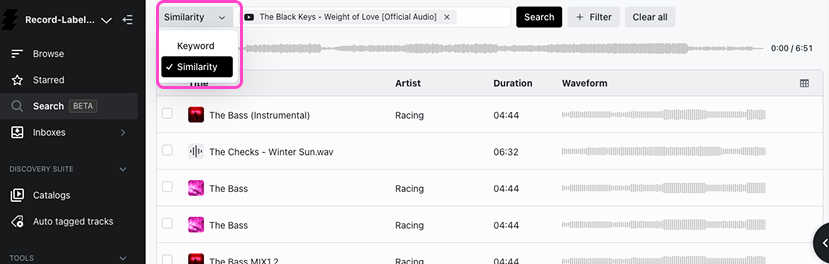
If you have a strong reference track, Similarity Search can help you quickly uncover similar-sounding options in your DISCO.
From the search bar: paste a reference URL directly into the search bar. DISCO can analyze audio from DISCO track links, Spotify, Apple Music, or YouTube, then compare it against the tracks in your DISCO to return the closest matches.
From the Breadcrumb Trail: when you click on a track and see the playlists it appears in, there is a Similar sounding tracks tab right alongside the playlist view. This lets you explore sonically related content without leaving the track you are already looking at.
Build playlists as you search
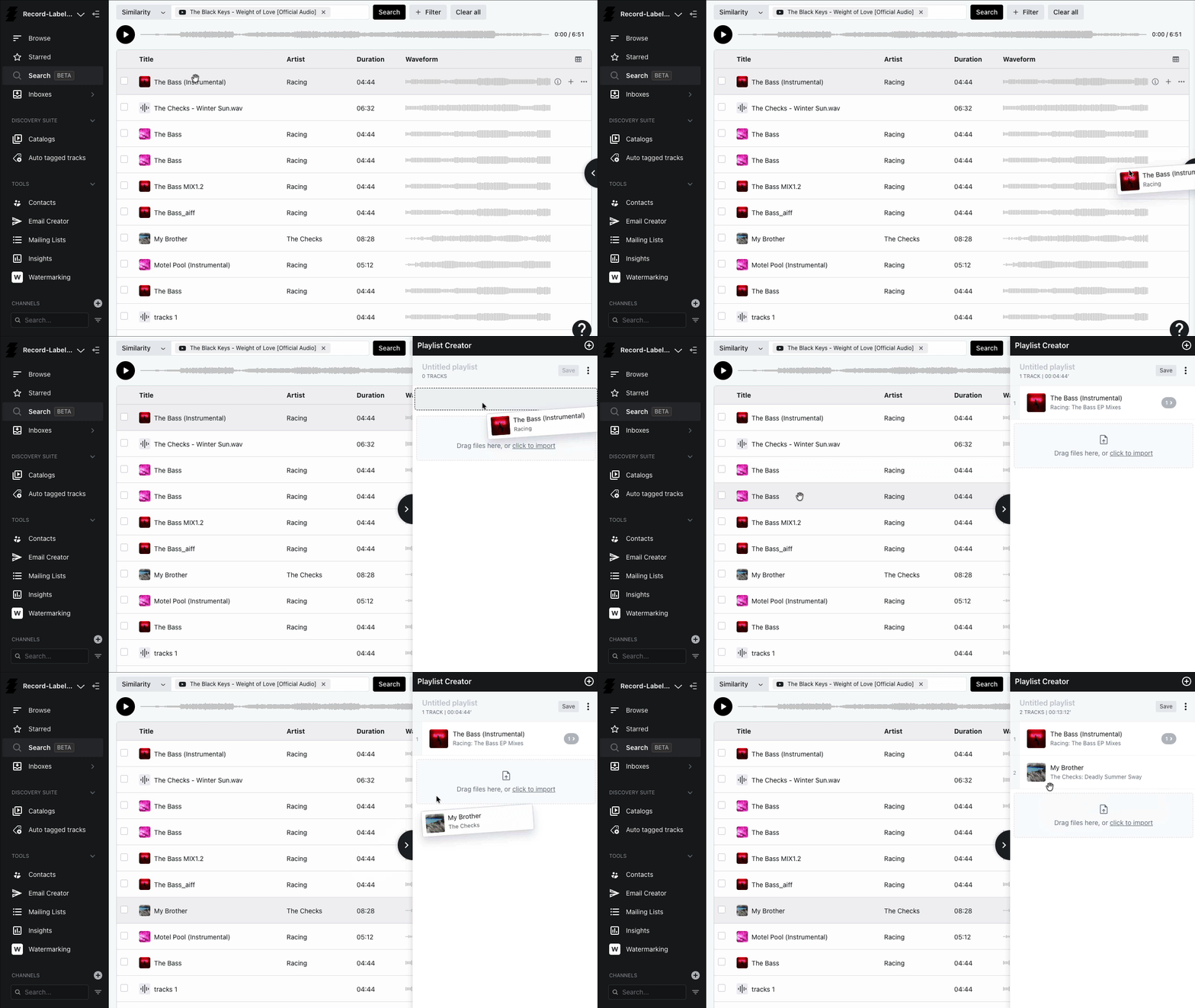
As you find relevant tracks, you can drag them into the Playlist Creator.
You can also add tracks directly from the player menu in the bottom-left corner. This makes it easy to build shortlists while you search, rather than doing everything in separate steps.
Uncover related tracks through the Breadcrumb Trail
Search in DISCO is not only about typing keywords - it is also about building on work that already exists.
Find existing playlists from a track
When you click on an individual track in Browse, DISCO opens a column to the right showing all the playlists that already contain that track. Those playlists often group together tracks with similar sounds, moods, genres, or creative intent, so exploring them can quickly lead you to more relevant material without starting a new search from scratch.
Alongside the playlist view, the Similar sounding tracks tab lets you go further - surfacing tracks that are sonically related to the one you are looking at.

Reuse previous work
Every time someone on your team completes a search, that activity becomes part of the Breadcrumb Trail. Work that once took an hour to build can often be revisited in seconds. Over time this helps your team build a reusable knowledge base of strong playlists, useful search paths, trusted tag combinations, and proven creative directions - especially valuable for teams handling repeated briefs or ongoing client requests.
Tips for team collaboration
When multiple people work in the same DISCO, search becomes even more powerful when paired with good playlist habits.
Each team member should create and save their own playlists while searching - those playlists then appear in Browse for others to build from. Avoid editing the same playlist at the same time, since changes are not visible in real time and one saved session can overwrite another. A good workflow is to let individuals search and build independently, then combine the best material into final shared playlists.
Wrap up
DISCO search is much more than a basic search bar. Used well, it helps you find tracks faster, narrow large catalogs efficiently, uncover hidden gems, and build on existing team knowledge through the Breadcrumb Trail. The more consistently your team searches and saves playlists, the more useful DISCO becomes over time.