


In this article
You'll learn how to:
- open and edit track info in DISCO
- edit multiple tracks at once
- understand what each track info tab is for
- identify which metadata fields matter most
- copy track info between tracks and versions
- use tags and custom fields effectively
- preview what metadata will write to downloaded files
Open and edit track info
There are a few ways to open Track Info in DISCO.
To preview a track's information, hover over the Track Info icon on any track.
To open the full Track Info editor, you can:
- select View full track info from the track preview
- choose Edit track information from the track menu
- open View full track info from the Track pane
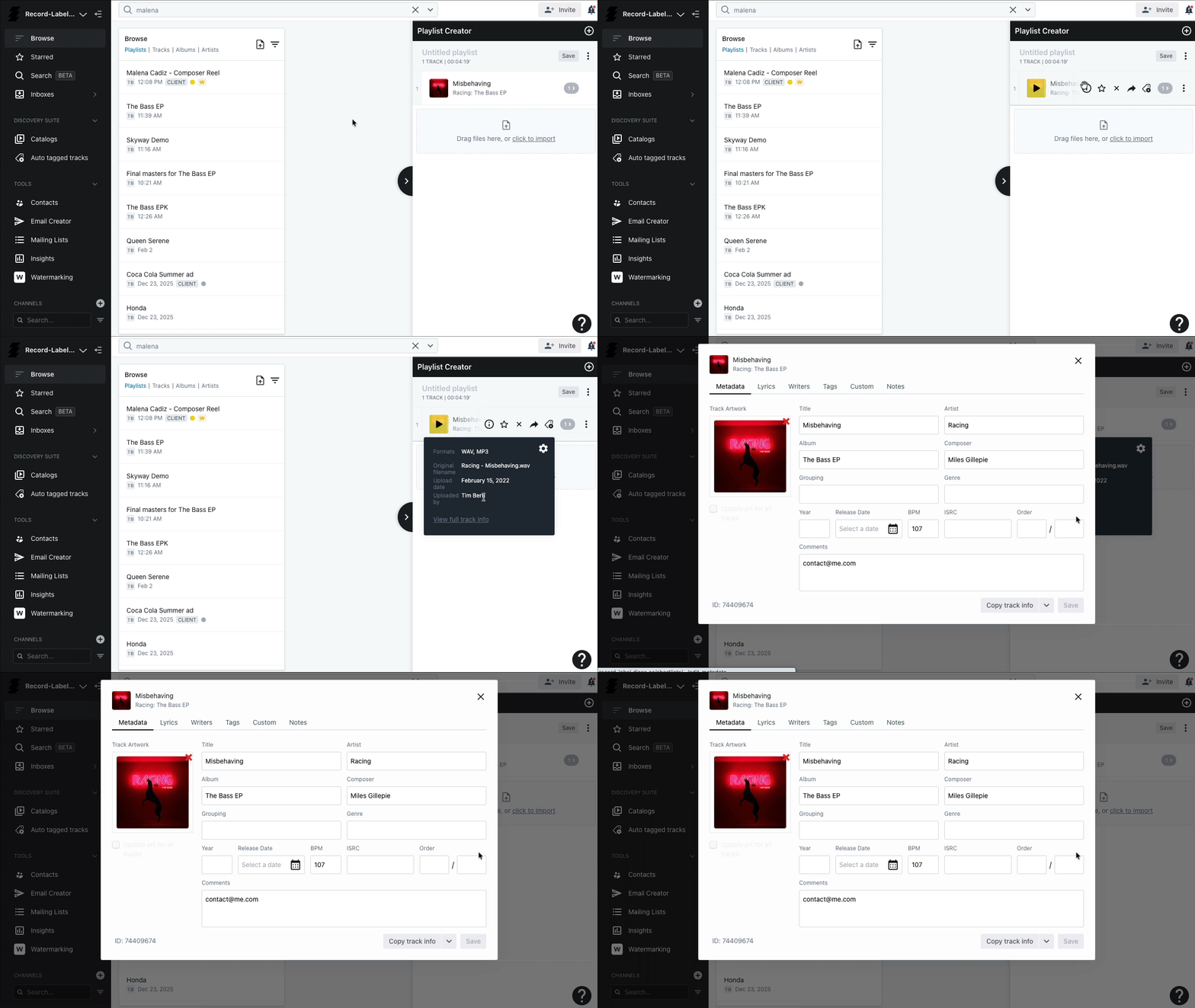
Edit multiple tracks at once
You can update multiple tracks at the same time by opening the playlist menu and selecting Edit all track metadata, or by selecting multiple tracks using Shift or Command and clicking the pen icon (at the bottom of the page).
The Track Info editor will show Edit X tracks. If selected tracks contain different data in the same field, that field will display as Mixed.
Be careful when editing in bulk - metadata edits cannot be undone, and editing all tracks may overwrite existing metadata.
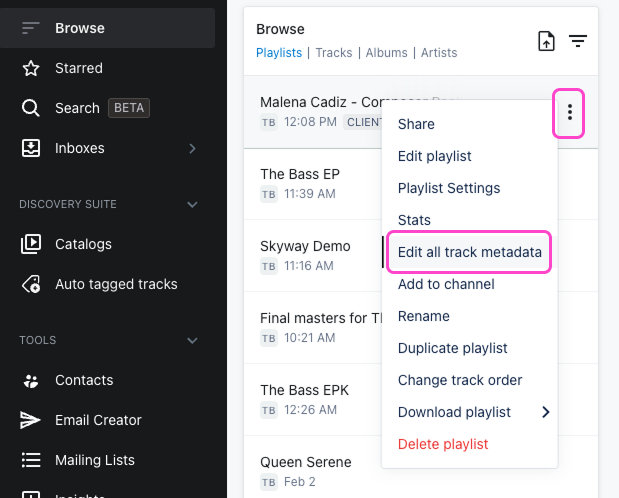
Understand the track info tabs
The Track Info editor includes several tabs, each with a different purpose.
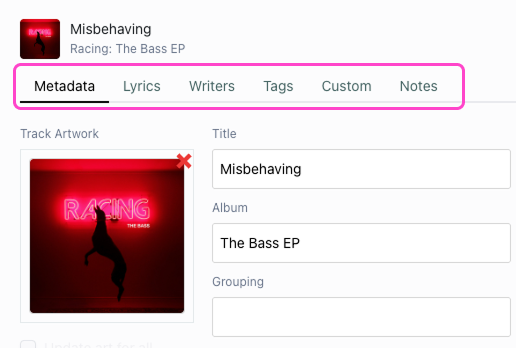
Metadata
This tab contains the core metadata fields that write to MP3 and AIFF files when tracks are downloaded or shared - things like title, artist, genre, artwork, year, ISRC, and comments.
Lyrics
Lyrics have their own tab and are also part of track metadata. Adding lyrics improves search results and makes tracks more useful for sync, A&R, and creative review workflows.
Writers
Use the Writers tab to add songwriter names, split percentages, publishers, and PRO information. This data is mainly for internal use but can support downstream workflows around rights, ownership, and administration. Writers are stored in the contact database and linked through this tab.
Custom
Custom Fields let your team store additional track information beyond standard metadata - things like ownership status, agreement dates, or internal codes. Custom Fields are available on certain plans.
Tags
Track tags are native to DISCO and are used for internal search and for DISCO Catalogs. They help describe a track in ways that go beyond standard metadata, such as mood, energy, instrumentation, or sync use case. Track tags do not travel between DISCOs as standalone tags, but they can be written into the Comments field of downloaded tracks if enabled in Business Settings.
Notes
There are two types of notes in DISCO - internal notes, which are visible only to your team, and client notes, which are visible on shared playlists. Notes add context around a track and can also help return results in search.
Start with the fields that matter most
If you are starting from scratch, some fields do more heavy lifting than others. A strong minimum standard is:
- Title
- Artist
- Comments
- Artwork
- Lyrics
Keep titles clean
The Title field should clearly identify the song. Include important version details when needed - main version, instrumental, clean, underscore - but keep titles easy to scan. Avoid overloading the field with excessive notes or formatting.
Use artist names consistently
Inconsistent naming creates confusion in search results and makes catalogs harder to browse. If one artist is named three different ways across your catalog, those tracks become harder to find and group together.
Use Comments for practical information
The Comments field is one of the most useful fields in music workflows. It is a good place to include contact information, ownership or control details, writer split summaries, one-stop status, clearance notes, and any internal reference details that help someone quickly work out who controls a track and how to move forward.
Add lyrics whenever possible
Lyrics improve discoverability in search and are especially useful in sync and creative workflows where people are searching for songs with specific themes, keywords, or phrases. Even partial lyrics are often more helpful than none.
Include artwork
Artwork makes files feel more complete and professional when shared or downloaded, and helps recipients identify tracks more quickly in folders and music players.
Use Genre carefully
Genre should describe the musical lane of the track as clearly as possible. Avoid loading it with moods, themes, or marketing language - those details are better suited to tags, lyrics, notes, or custom fields.
Use tags to improve internal search
Tags are a powerful way to describe tracks beyond standard metadata. They are especially helpful for mood, energy, instrumentation, vocal type, sync use cases, and scene or brief language. The more consistently your team applies tags, the more useful search becomes across the catalog.
Use custom fields for team-specific workflows
Custom Fields are best for information that matters to your team but does not fit neatly into standard metadata - things like deal expiry dates, territory control, one-stop status, internal codes, publishing status, or delivery status.
Copy track info between tracks and versions
DISCO lets you copy track information from one track to another, which is especially useful when you have uploaded an alternate version - like an instrumental, clean edit, or acapella - without any metadata.
You can access the Copy Track Info tool from the Track Info editor, the track menu, or the multi-select actions menu.

How to use Copy Track Info
When you open the tool, DISCO will suggest tracks with matching titles to copy to or from. You can also search for any track manually, and drag and drop tracks between the To and From sides.
Select which fields to copy on the From side and preview how they will update on the To side. By default all fields are selected except Title and Order - which is usually what you want, since you do not want to overwrite a version name like "Instrumental" with the main track title.
What gets overwritten vs added
Different field types behave differently when copied:
- Metadata fields: overwrite
- Lyrics: overwrite
- Writers: overwrite
- Custom Fields: overwrite
- Notes: add to existing
- Tags: add to existing
DISCO will show a warning if any fields will be overwritten. Take care with Writers in particular - existing Writers information will be replaced when the copy completes.
Undo a copy
If you copy the wrong fields, DISCO gives you a 10-second undo window. Click Undo in the bottom-left corner of DISCO to revert the track info back to what it was before the copy.
Know what writes to downloaded files
Not every type of track information behaves the same way when files are downloaded. DISCO supports ID3v2 metadata, which reliably writes to MP3 and AIFF files. WAV files do not reliably carry ID3v2 metadata, so metadata behavior can be inconsistent in WAV downloads. Keep this in mind when preparing files for sharing or delivery.
Preview what will and won't write
You can use Track Info Preview to check exactly what data will and will not be present in a downloaded track. Open the Track Info editor, open the Copy track info menu, select Preview track info, then switch between the Will write and Won't write tabs. This is a useful final check before sending files out.
Note that metadata updates do not carry into other DISCOs where tracks have already been saved.
Wrap up
Good metadata helps your music get found, understood, cleared, and shared more efficiently. The more cleanly and consistently you manage track information - titles, artists, comments, lyrics, tags, and custom fields - the more useful your catalog becomes for your team, your collaborators, and everyone you share music with. When you are working with multiple versions of the same track, Copy Track Info can save hours of repetitive editing and keep everything consistent across your catalog.