


In this article
You'll learn how to:
- share a track or playlist and choose the right delivery method
- view engagement and access stats after sharing
- understand when to share a Channel instead
Tracks and playlists - the same sharing tools, different scale
Whether you are sharing a single track or a full playlist, the core sharing tools work the same way - share URLs, email, assigned URLs, embed codes, and access stats all apply to both. The main difference is that playlists add a layer of presentation, security controls, and organization that makes them the better choice for most professional sharing situations.
Choose how to deliver a track or playlist
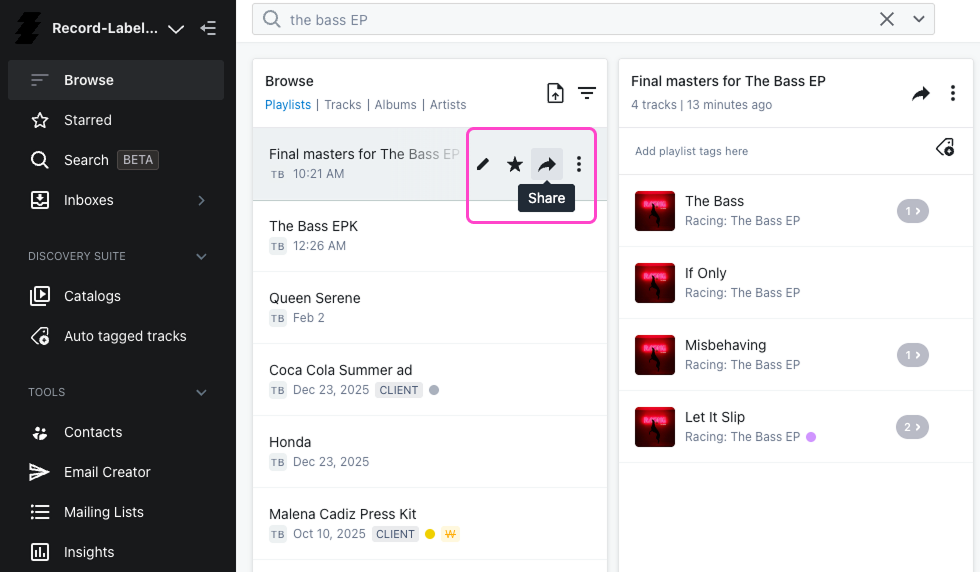
DISCO offers several ways to share depending on the situation. Open the Share area from the track or playlist menu to access all of the options below.
Share URLs
Every track and playlist has its own share URL, accessible from the track or playlist menu.
For tracks, there are two URL options - a regular share URL that opens a share page with artwork and lyrics if present, and a stream only URL that opens the same page without download access.
For playlists, there are three options - the standard Playlist URL that opens a full playlist page, an internal URL for teammates with account access, and a direct download URL that starts a ZIP download immediately. For most recipients, the standard Playlist URL gives the best experience.
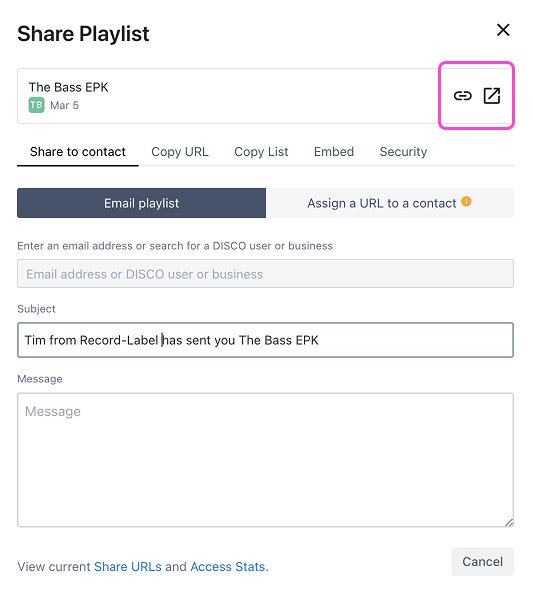
Email directly from DISCO
Both tracks and playlists can be emailed directly from DISCO. Enter one or more email addresses or a mailing list, write a message, and send. Each recipient gets their own unique URL, their activity is tracked individually.
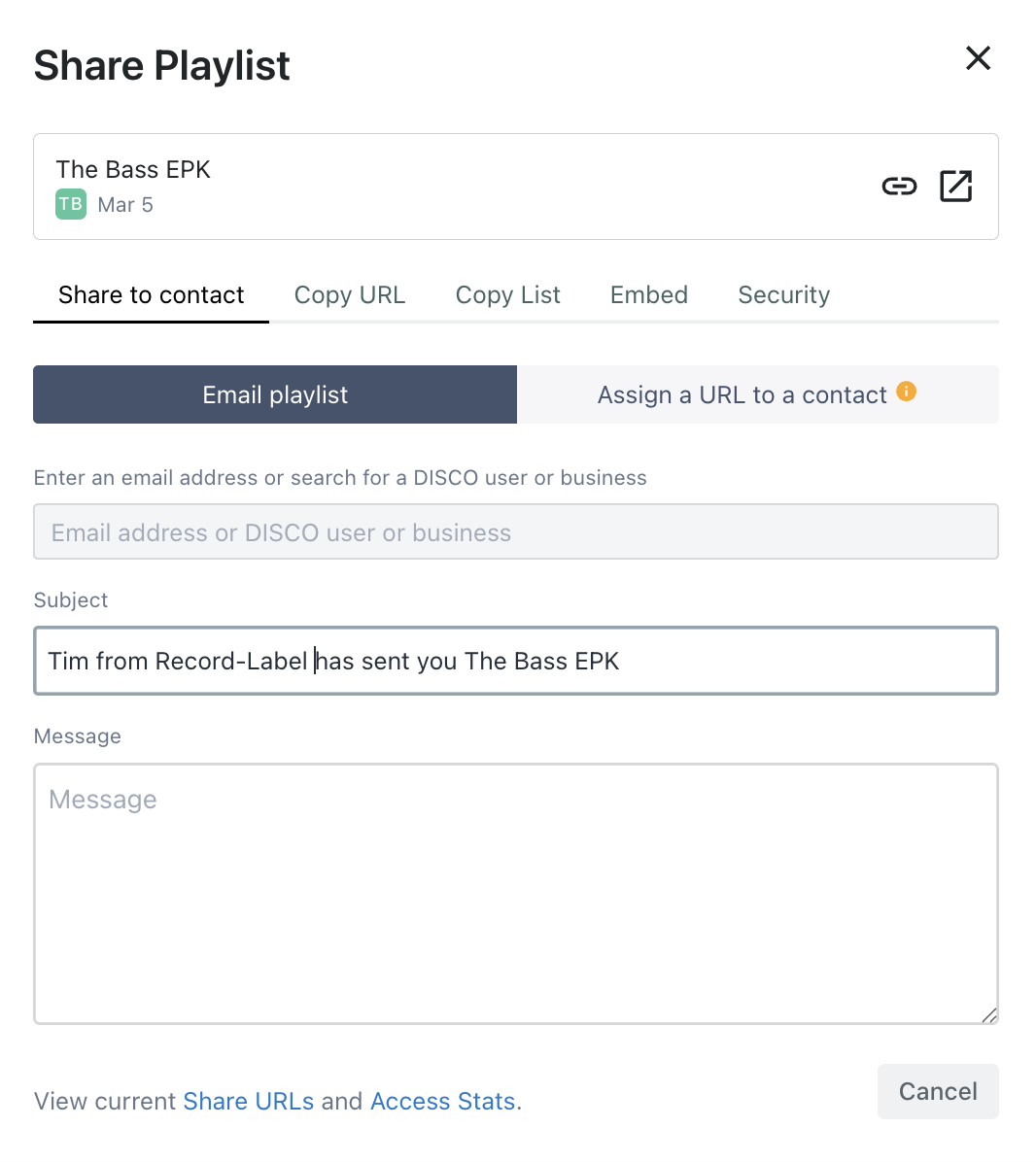
Type the name of a mailing list in the address bar, select the list and DISCO will expand it into its individual contacts.
Recipients are BCC'd so they cannot see one another.
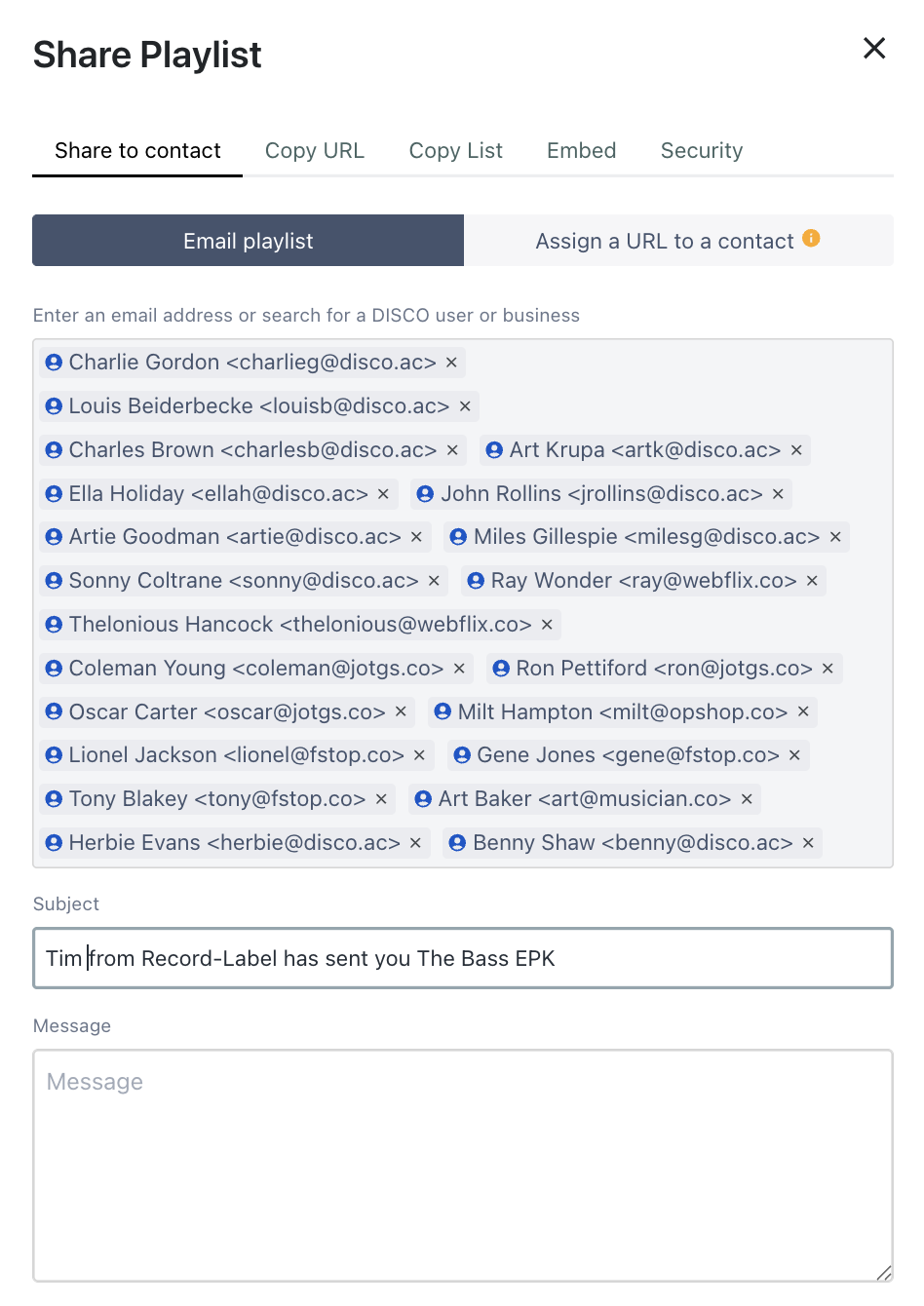
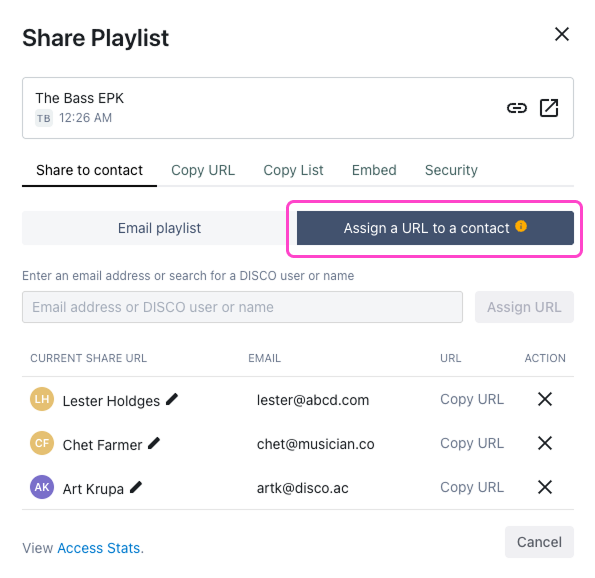
Assign a URL to a contact
If you want to send through your own email or another channel, assign a unique URL to a specific contact first. This works for both tracks and playlists and lets you track that person's engagement individually while communicating however you prefer.
Send a playlist to a DISCO Inbox
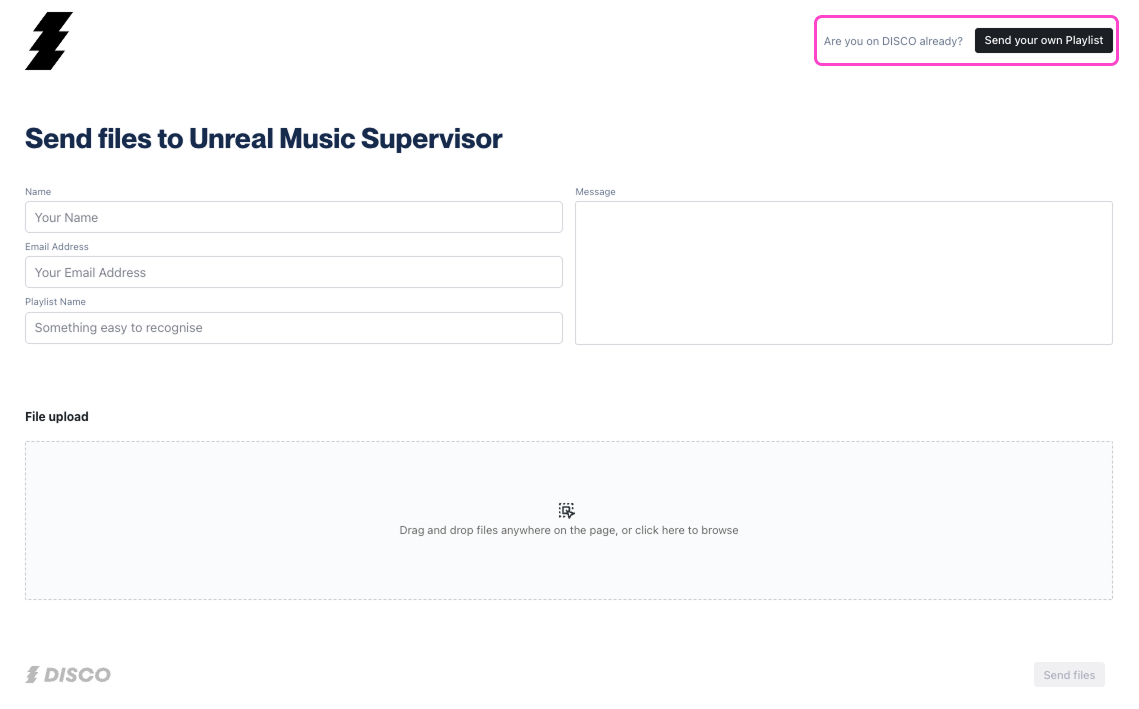
If a recipient uses DISCO, you can send a playlist directly to their Inbox by pasting the Playlist URL into their Inbox page. No re-uploading needed.
Embed a player on a website
Both tracks and playlists can be embedded on a website using DISCO's embed code. Open the Embed tab in the Share area to edit player settings, adjust colors and dimensions, enable or disable artwork, and set download or streaming-only access.
For embedding players on your website in bulk - for example across multiple artist profiles - refer to the Advanced Embedding Tutorial.
Control access and security
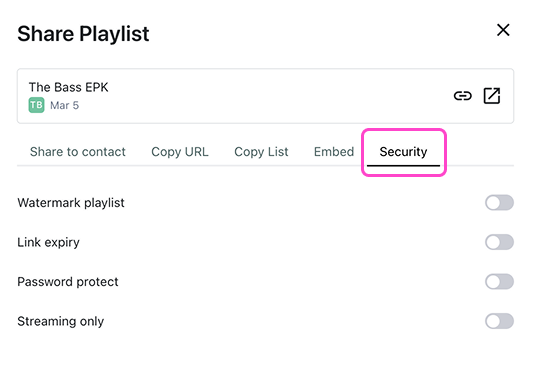
For full details on password protection, link expiry, streaming only access, download controls, and Watermarking, see the Control how your music is shared article.
View engagement after sharing
Once a track or playlist is shared, DISCO tracks how recipients interact with it.

What generates stats
Interactions that generate stats include opens and clicks, playlist downloads, saves to DISCO, individual track streams, and individual track downloads. Stats are also generated when playlists are accessed inside DISCO Inboxes, including track streams and starred or added tracks.
How to view stats
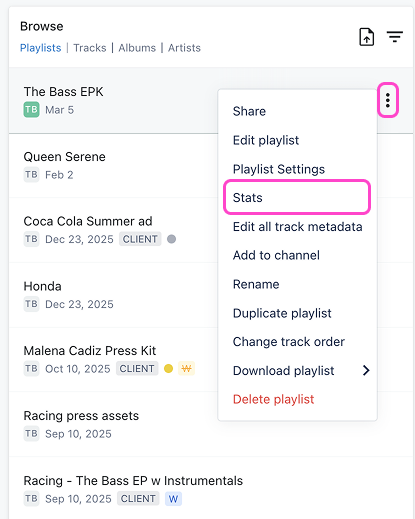
All interactions are viewable in the Stats dashboard, located in the track or playlist menu.
If you share the same URL with a group of people, their activity is combined into one metric filed under Other Recipients. If you email directly from DISCO or assign a URL to a contact, each recipient's activity appears in its own row. Hover over the numbers in the Stream and Download columns to see which specific tracks were played or downloaded - this is available on Plus plans and above.
Contact activity
Every time you email or assign a track or playlist to a contact, it is added to their Activity panel in the Contact database. Open a contact card and scroll to the Activity panel to see everything assigned or emailed to that person, with track-level stream and download detail on hover.
Email campaign stats
If you use DISCO's Email Creator, each recipient in the campaign is automatically assigned their own unique URL. The resulting stats break down every stream and download by recipient, viewable in the Email Analytics Dashboard. These interactions also link back to each recipient's contact card.
Assigned URLs and direct emails give you individual engagement data per recipient. A general (non-assigned) share URL groups all activity together. If knowing who listened matters for a specific share, use an assigned URL.
When to share a Channel
For most sharing situations - a pitch, a delivery, a review package - a track or playlist is the right tool. But when the work is larger and more structured, sharing a Channel gives recipients a navigable folder hierarchy rather than a single file or flat list.
Channel sharing (available on Pro plans) is suited to situations like a full season of TV cues organized by episode, a label catalog broken out by artist, or an ongoing release schedule organized by month. See the Share Channels and folders article for a full walkthrough.
Wrap up
Sharing a single track is quick and works well for simple situations. Playlist sharing is the core delivery format in DISCO - flexible, with full engagement visibility, and controllable from a single share area. For larger structured bodies of work, Channel sharing extends that further. Once you understand which format fits the job, sharing in DISCO becomes a consistent and reliable part of every workflow.